Gmail & Microsoft 365 Account Pools
When a team wants to distribute personalized client notifications, proposals, or certificates evenly across multiple departmental mailboxes—without paying for a third-party SMTP service—Smart Mail Merge supports Gmail Account Pool and Microsoft 365 / Outlook Account Pool natively via OAuth2.
Gmail Account Pool (Google OAuth2)
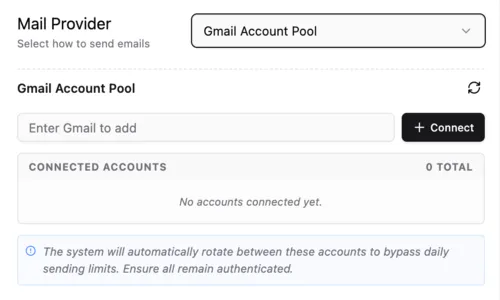
Setup Steps
- Open Edit Config → Mail Settings and choose Gmail Account Pool.
- Enter the Gmail or Google Workspace email address you want to connect and click + Connect.
- Complete the Google OAuth2 sign-in popup (scoped strictly to
https://www.googleapis.com/auth/gmail.sendwith offline refresh). - Once connected, the mailbox appears in your Connected Accounts list with a live access badge.
- Repeat to add additional team mailboxes.
How Rotation Works
Each outgoing email rotates through your connected active mailboxes in round-robin order (nextIndex = (lastIndex + 1) % accounts.length), keeping daily volume balanced across your team while respecting each Workspace account’s daily limits.
Microsoft 365 / Outlook Account Pool (Microsoft Graph API)
Teams running on Microsoft 365 / Outlook can send personalized emails and merged Google Docs/Sheets/Slides PDF attachments directly from Google Sheets™ or Google Forms™!
Setup Steps
- Open Edit Config → Mail Settings and choose Microsoft Account Pool.
- Enter your Microsoft 365 / Outlook email address and click + Connect.
- Sign in via Microsoft OAuth2 (
offline_access mail.send) and approve access. - Add one or more Outlook / Microsoft 365 accounts—Smart Mail Merge rotates through them automatically via the Microsoft Graph API (
/v1.0/me/sendMail) with full HTML body,CC,BCC, and PDF/DOCX/XLSX attachment support.
Revoking or Reconnecting Mailboxes
- Click Remove next to any mailbox to immediately reset and delete its OAuth2 token from Document Properties.
- If a team member changes their Google or Microsoft password, simply click Reconnect to refresh their token.
Ready to launch your first mail merge?
Install Smart Mail Merge free from the Google Workspace Marketplace (includes a 7-day Pro trial).