Design Your Google Slides Template
After setting up your form, the next step is to create a Google Slides™ template for your certificate. This template will be populated with form response data and system-generated fields during the certificate generation process.
Creating a New Slides Presentation
We recommend starting with a blank Google Slides™ presentation to have full control over layout, branding, and placeholder placement.
Steps to Create Your Template:
- Open Google Slides.
- Click on Blank Presentation.
- Go to File > Page Setup and set custom dimensions (e.g., A4 or Letter).
- Design your certificate layout by adding:
- ✅ Your organization’s logo
- 📝 Certificate title and body text
- 🎖 Decorative elements (borders, seals, background)
- 🔖 Placeholder fields (e.g.,
{{Full Name}},{{Course Title}})
Adding Placeholders (Merge Tags)
Placeholders are used to insert data from Google Form™ responses into the certificate. Each placeholder corresponds to a question title in your form.
Format
Placeholders are defined using double curly braces. Each one must match a question title from your Google Form exactly.
Examples:
{{Full Name}}{{Course Title}}{{Score}}
✅ Note: Placeholders are case-sensitive and must not contain extra spaces or punctuation.
Use this type of placeholders in your Google Slides™ template to dynamically insert personalized information into each certificate.
Styling Placeholders
Follow these best practices to ensure your placeholders look professional and work well with dynamic data:
-
Use consistent fonts and sizes Stick to a readable, professional font throughout your template (e.g., Roboto, Open Sans).
-
Center-align important fields Center alignment works best for fields like
{{Full Name}}or{{Certificate Title}}. -
Allow space for longer responses Some names or titles may be longer than expected. Ensure the text box is wide enough and supports text wrapping or auto-resizing.
-
Maintain your brand identity Style your placeholders with brand colors, logos, and typography to give the certificate a polished and personalized appearance.
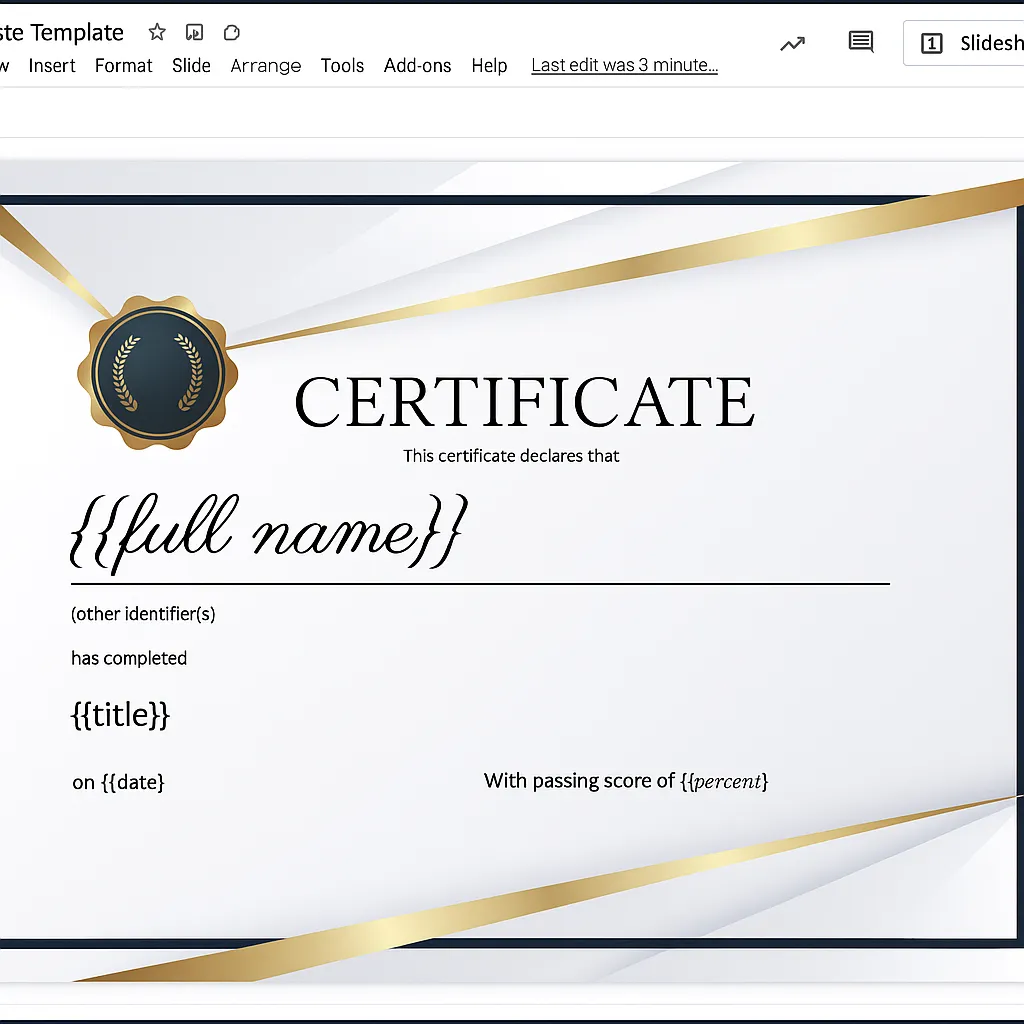
Example: Template with Merge Tags
Google Slides template showing merge tags like {{Full Name}}, {{Title}}, etc._
Using System-Generated Field Placeholders
Smart Certificates supports several built-in placeholders that are automatically generated, regardless of form input.
Available Fields
| Placeholder | Description |
|---|---|
{{Certificate Number}} | A unique identifier assigned to each certificate |
{{Date}} | Date of certificate generation |
{{Verification Link}} | A unique link for verifying certificate authenticity |
{{Form Name}} | The name of the connected Google Form |
{{Reached Percentage}} | Respondent’s score in percentage (from quiz forms) |
{{Reached Points}} | Points earned (from quiz forms) |
You can place these fields anywhere in your certificate layout, just like regular placeholders.
📺 How-to Video: Designing Templates with Google Slides
Watch this live step-by-step tutorial on how to design your certificate template layout and position your merge tags in Google Slides:

Once your template is complete, you’ll connect it to your form and begin mapping fields using the Smart Certificates interface.